ChartLogic Help CenterChartLogic Help CenterChartLogic Help CenterChartLogic Help Center
  • Create a Case
  • Manage Cases
  • Contact Us
  • Account
  • Login

CCDA Data Export Guide

  • Direct Message Report
  • Human Readable CCDA
  • Adding an Implant Device
  • Vaccine Screen Changes
  • Automatically Import Pharmacies
  • Audit Log
  • Viewing Secure Messages and requests in the EHR
  • Clinical Note Types
  • Previous Name and Address
  • CCDA Export Subset of Patients
  • Additional CCDA Export Data
  • Searching for Patients
  • Managing Patient Information
  • Patient Exams
  • Schedule
  • Flowsheets
  • Patient Intervention and Health Maintenance Profiles
  • Case Management
  • Orders
  • Sending and Receiving Messages
  • Reports
  • Dragon Naturally Speaking Voice Integration
  • Vocabulary Editor
  • Diagnosis Director
  • Primary Care Features
  • E/M Consultant
  • Patient Tracker
  • Referring Patients
  • Referral Reply Letter
  • Fax Viewer
  • Legacy Audit Trail
  • Error Log
  • DataShare
  • ICD-10 Setup & Training
  • CCDA Data Export Guide
  • Regulatory Report
Home EHR Functionality CCDA Data Export Guide

Before you begin

There are three requirements to be able to automatically export CCDAs from ChartLogic EHR:

1. Use a computer that will be on when the automatic export is scheduled.
2. Run ChartLogic  as administrator
3. Allow multiple instances of ChartLogic to run on the computer<

Instructions for requirements 2 and 3 are below.

Run ChartLogic EHR as administrator

ChartLogic needs to be run as administrator to add the automatic data export to Window’s scheduled tasks. Perform the following steps to open and sign into ChartLogic with the appropriate permissions.  First, here are three ways to access the command to be able to run the program as an administrator.

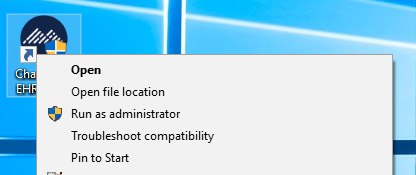
1. Starting from any desktop program icon shortcut

  • Right-click on shortcut
  • Choose “Run as administrator”
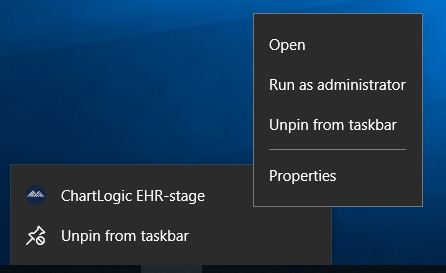
2. Starting from Taskbar

  • Right click on Taskbar icon
  • Right click on menu icon
  • Choose “Run as administrator”
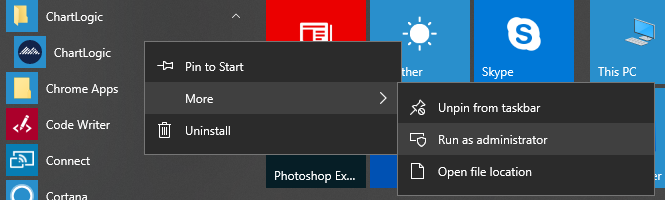
3. From the Start Menu

  • Find ChartLogic Folder
  • Right-click on icon
  • Click More
  • Click on “Run as administrator”

After clicking “Run as administrator” you will be presented with a window with the following text:
“Do you want to allow this app from an unknown publisher to make changes to your device?”

Click “Yes.”  Finally, sign in with a user that has administrator privileges.


Allow Multiple Instances

Sign in to the EHR system as normal.

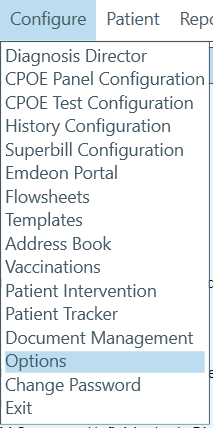
First, click on the Configure menu at the top left. Choose Options to open the configuration screen.

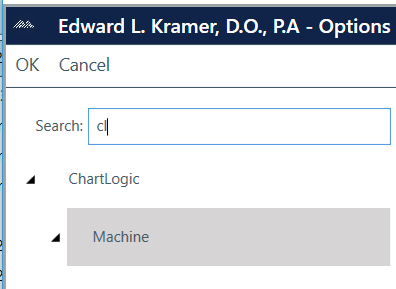
On the next screen, click on the word Machine, and a selection menu will open in the middle of the screen.

You must set the option “Allow Multiple Instancesof ChartLogic” to “Yes.”

Accessing the data export settings

The next step also takes place in the same window that you just opened.

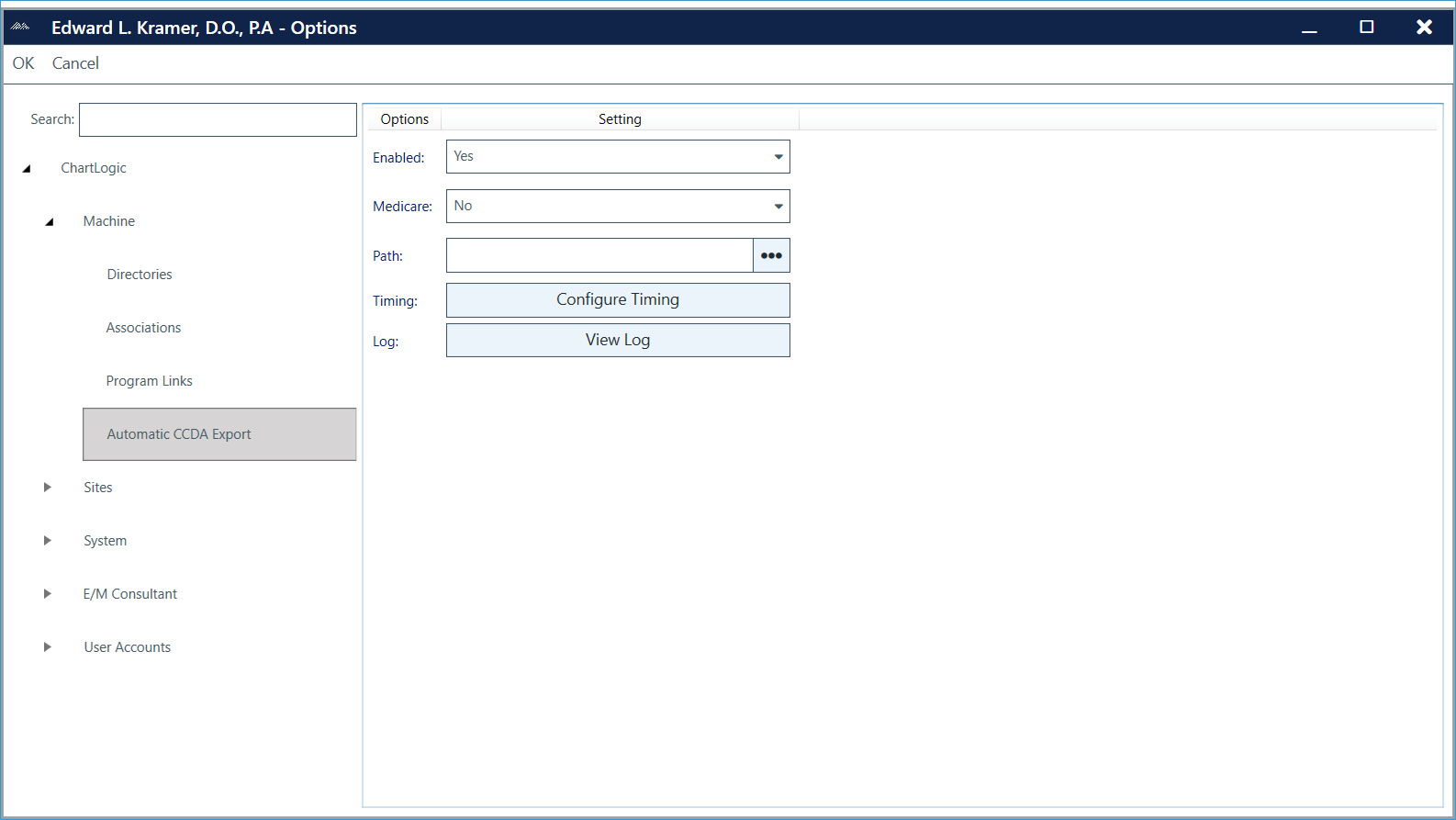
Under the Machine menu, now choose the option “Automatic CCDA Export”

Available Settings

Once the menu for Automatic CCDA Export has been chosen, you will be presented with several options.  The table below explains the various qualities of each option. Following the table is a graphical view of the options menu.


Parameter Options Description
Enabled Yes/No Turns the automatic CCDA export on or off
Medicare Yes/No Only export CCDAs for patients on Medicare
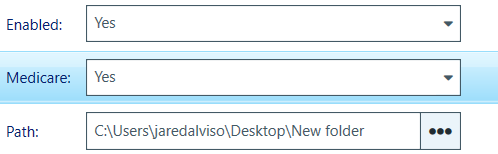
Path Filesystem directory The directory on the local hard disk where CCDAs will be exported to
Timing See below The timing option determines how often the automatic CCDA export will run, and what additional options are available on this screen. See below for more options.

Path Settings

After enabling the export, you’ll need to choose a path for the export to be saved to. Click the three dots to the right of the path field, and choose where you would like the exports to be saved.

Timing Settings

Next, you’ll choose a configuration for the timings of the automatic export. The table below explains the various options.

Parameters

Parameter Description
One Time Export Export one time only.
Daily Daily export of patients who had encounter during the previous 24 hours.
Weekly Weekly export of patients who had encounter during the previous 7 days.
Monthly Monthly export of patients who had encounter during the previous month.
Yearly Yearly export of patients who had encounter during the previous year.

One Time Export

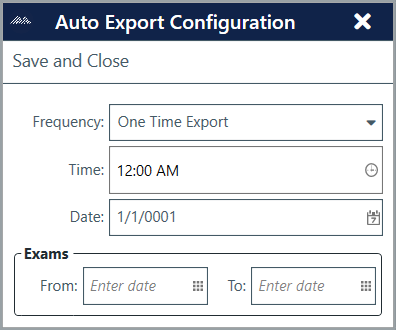
The one time export is useful if you need to mass export patients’ medical records, which can take up significant time. This allows the mass export to be scheduled to take place outside of work hours.

You can choose from the parameters outlined in the table below.  Read on for a fuller explanation of each option.

Parameters

Parameter Description
Time Time when the export will take place.
Date Date when the export will take place.
Exams From – To CCDAs will be export for patients that had encounters during this date range

Daily

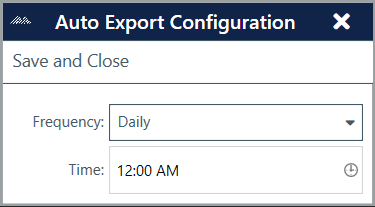
This will automatically export the medical records of patients’ who had an encounter during the previous 24 hours.

Parameters

Parameter Description
Time Time when the export will take place.

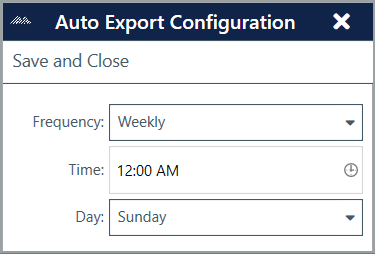
Weekly

This will automatically export the medical records of patients’ who had an encounter during the previous week.

Parameters

Parameter Description
Time Time when the export will take place.
Day Day of the week when the export will take place.

Monthly

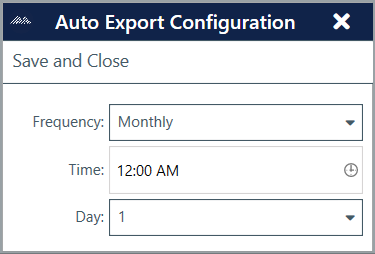
This will automatically export the medical records of patients’ who had an encounter during the previous month.

Parameters

Parameter Description
Time Time when the export will take place.
Day Day of the month when the export will take place. If the day field is set to a day that does not occur in the month, then the export will take place on the last day of the month. For example, if the day is set to 31, then the automatic export for February will take place on February 28th or 29th.

Yearly

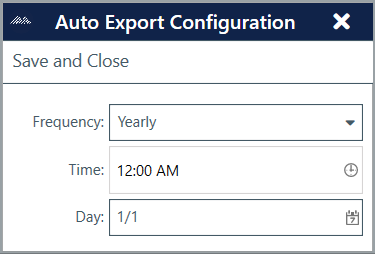
It is recommended that yearly exports be scheduled for a time when the computer running the automatic CCDA export will be available for several days as a yearly export could take significantly longer.

Parameters

Parameter Description
Time Time when the export will take place.
Day The day of the year when the export will take place.

Log

Clicking the log button will open a window containing the log of all automatic CCDA exports. You’ll be able to view and save the log as needed.

Log:

USER COMMUNITY

Share ideas with other ChartLogic users!

Login Now

Popular Articles

  • ChartLogic Installation
  • Methods for Achieving Better Voice Recognition
  • ICD-10 Setup & Training
  • Checking your Meaningful Use Reports

Quick Links

  • Practice Management Login
  • Remote Service Login
  • Release Notes
  • Account Management Updates

Free Medical Billing Analysis

Have you scheduled your free practice analysis yet?
Get Started
CALL 800.838.5899
EMAIL SUPPORT

Quick Links

  • Practice Management Login
  • Remote Service Login
  • System Requirements
  • Release Notes
  • Account Management Updates
  • Support Login

Connect

1220 E 7800 S, Floor 3
Sandy, UT 84094
Toll-Free (888) 337-4441

Medsphere

  • Privacy Policy
  • Terms
  • Sitemap
ChartLogic is the Ambulatory Division of © 2019 Medsphere Systems Corporation.
  • Create a Case
  • Manage Cases
  • Contact Us
  • Account
  • Login
ChartLogic Help Center